Google Cloud Vision
Overview
Google Cloud Vision offers a comprehensive set of machine vision tools which you may find useful for text extraction.
Bottle Rocket can integrate with Google Cloud Vision to extract text from images.
Prerequisites
- In order to create a Google Cloud connector, you will first need to have a Google account.
- With a Google account, you will then need to start a Google Cloud project in the console.
- Google Cloud Vision pricing has a free tier for the first 1000 units / month, which should be sufficient for most use cases.
Create the project in Google Cloud
If you have already created a GCP project as part of a Google Drive upload workflow, you can use this project instead of creating a new one.
- In the Google Cloud console, select Create or select a project.
- Enter a Project name, select a Location, and click Create.
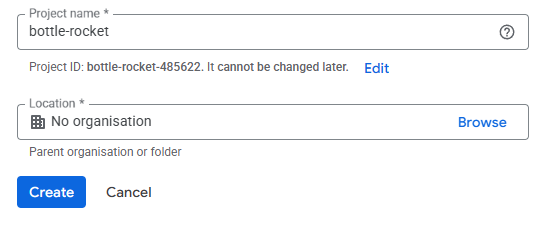
- In the main project dashboard, open the sidebar menu and navigate to APIs & services > Library.
- Search for Vision and you should see the Cloud Vision API listed; select it.

- Click Enable to enable the API.
- In the API / Service details screen, click Create credentials.
- Ensure that Select an API contains Cloud Vision API.
- For the credentials type, select Application data.
- Select Next.
- Fill in the details under Create service account, then select Create and continue.
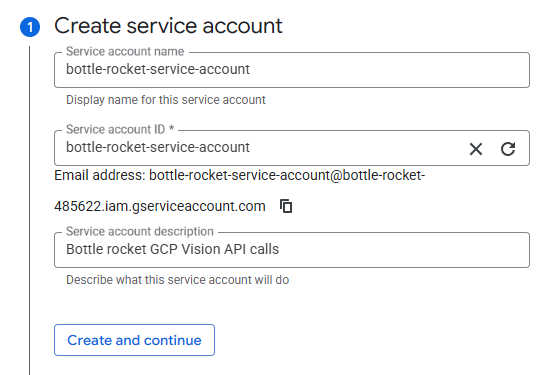
-
Skip the Permissions (optional) section.
-
Skip the Principals with access (optional) section.
-
Click Done to continue.
-
Now, under the APIs and services section, select Credentials from the sidebar menu.
-
Select the newly-added service account.
-
Navigate to the Keys tab, and click Add key, selecting Create new key.
-
Select JSON as the key type.
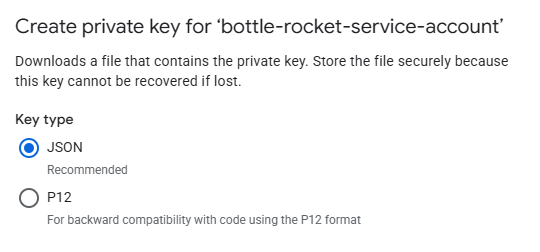
- Click Create to download the private key.
Treat this private key file like a password - keep it secure, private, and do not share it with anyone.
Upload the private key file to the GCP Bottle Rocket Connector
- Login to your Bottle Rocket server.
- On the left-hand sidebar, under My connectors, select Add connector.
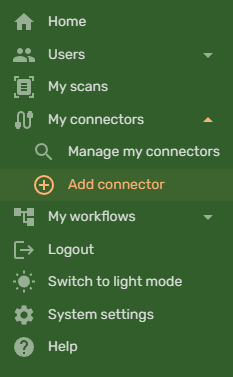
- Select the Google Cloud Platform Connector from the list of connectors, and click the Add connector button.
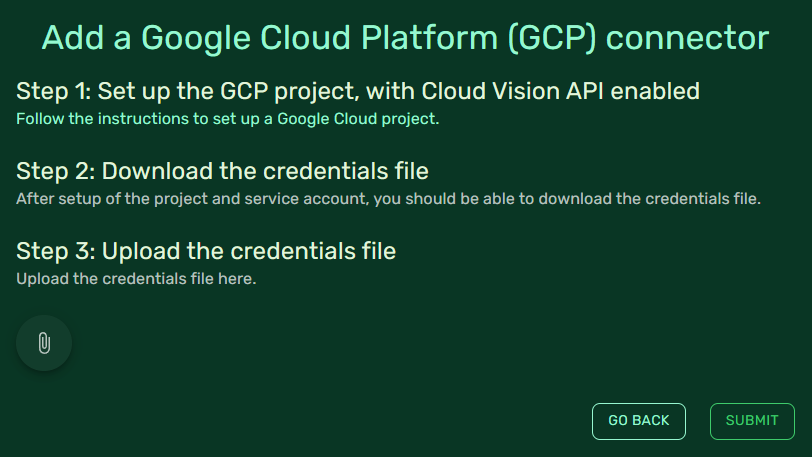
- Click on the paperclip / attachment button, and upload the private key file you downloaded from Google Cloud.
- Click Submit to save the connector.