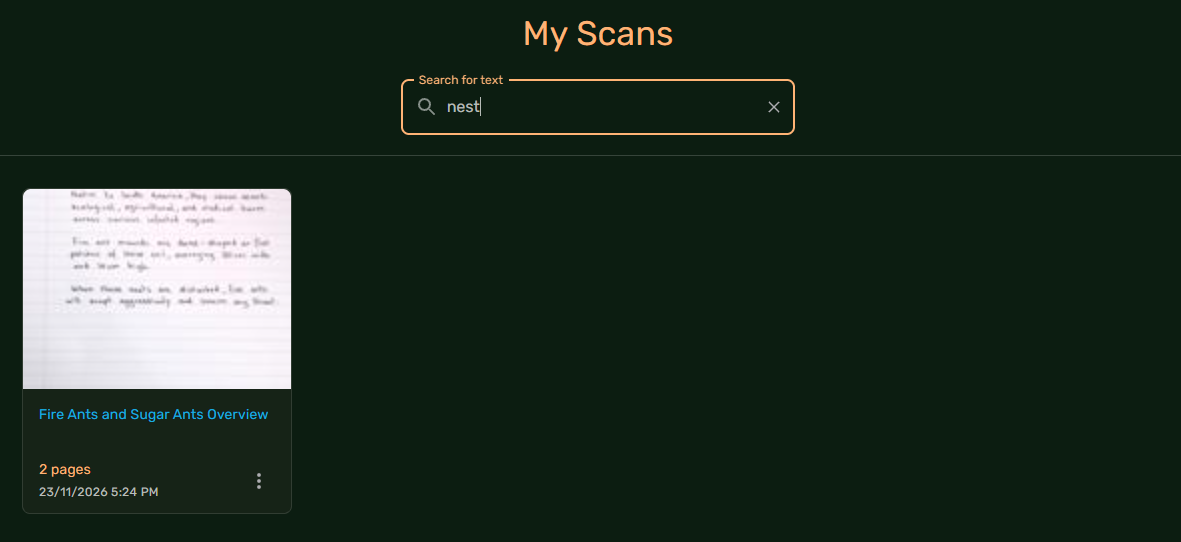
Searching your scans
Bottle Rocket can be configured to perform OCR / text recognition on incoming images to extract text data from them.
Where this has been performed on one or more of your scans, they then become searchable, i.e. you can search for key words inside your scanned images.
Transcribing an image to text
tip
To ensure that your image is transcribed, simply run a Text Recognition workflow step on it.
Bottle Rocket supports a range of OCR workflow steps from a variety of sources.
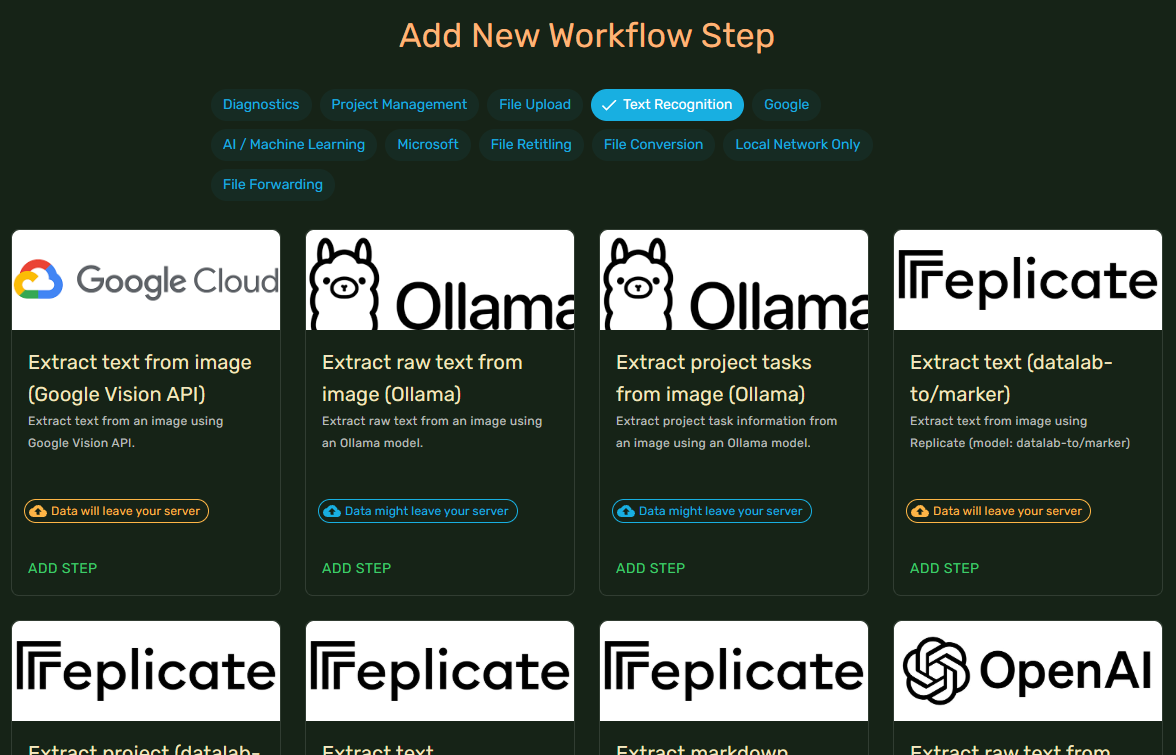
- After running the given text recognition workflow step against a set of one or more scans, when you navigate to My scans, for the given set of images, you should now find the Transcription button available at the top, next to each scanned image.
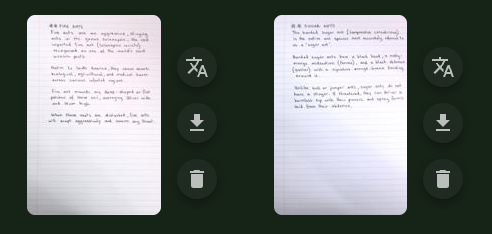
- Click on this button to bring up the transcription dialog.
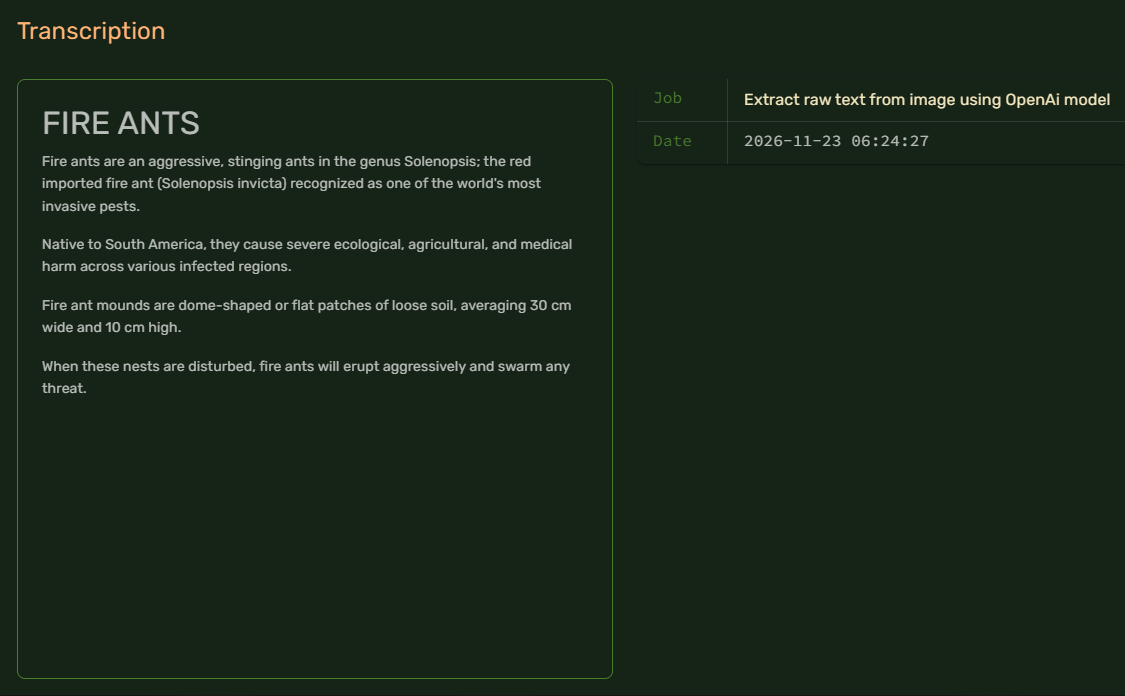
- The left pane will display the text that the OCR workflow step retrieved from the image.
- The right pane will contain a link to the execution where the OCR was performed, as well as the date.
Searching the scans
This text is now searchable.
Navigate back to My Scans, and enter a search term in the text field.
Any transcribed text that contains your search term will appear in the filtered results.