Capturing documents
After installing and configuring the app on your device, it's time to start capturing documents!
Capturing tips
- For best results, place the page(s) on a plain / flat surface - this will help the camera with image detection.
- Aim the camera at the page as squarely as possible, ideally directly above the paper.
- For some books (e.g. Scribzee), push the pages around the binder to avoid the camera capturing page codes on other pages.
Capture screen
- Open the Bottle Rocket app.
- Select Begin capture.
- Aim the camera at the page. If a valid page is detected, you should start to see the bounding box "fill up" to green.
- When completed, it will change to a blue box and take you to the image preview.
|
|
|
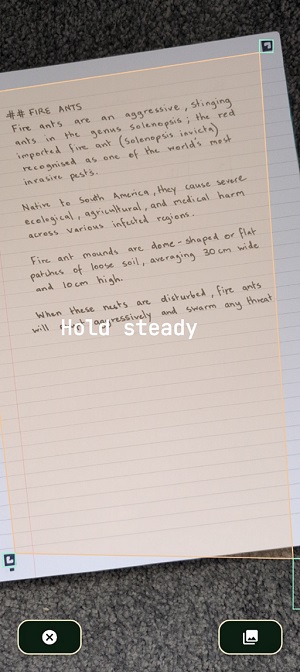
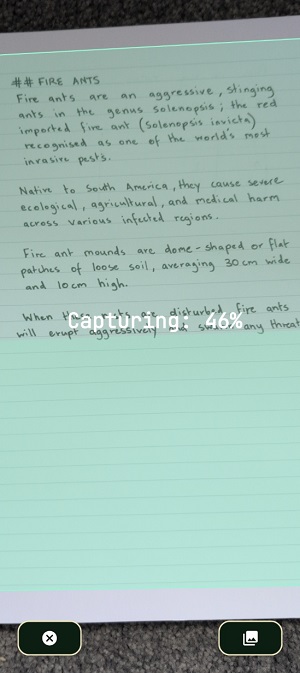
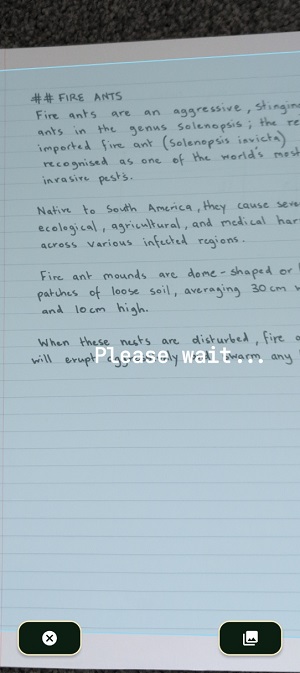
Image preview
After a successful image capture, you should see a preview of the image in the preview screen.
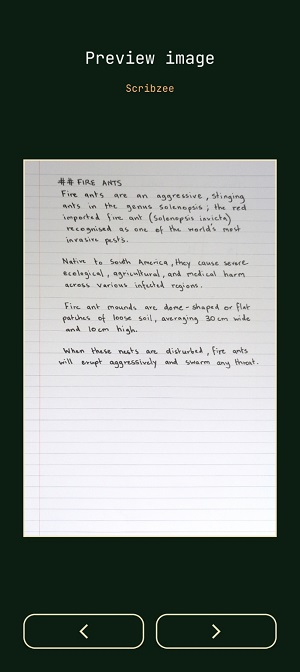
- The back / left arrow will discard this capture, and return you to the capture screen.
- The forward / right arrow will save this capture, and return you to the capture screen.
Capturing multiple images
- When returning to the capture screen, you can repeat this process for multiple pages.
- In the capture screen, you should now see that the gallery button on the bottom right of the screen will indicate the number of captures in your current batch.
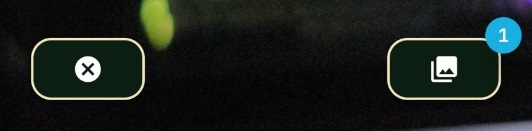
- Click the X / Cancel button to discard the entire batch of captures, and return to the main menu.
danger
If you confirm this action, you will lose this batch of scans, and will have to recapture them again.
- Click the Gallery button on the bottom right to preview the batch to send to your Bottle Rocket server.
Preview the images before sending
The preview screen will display all of the current images you have saved for sending to your Bottle Rocket server.
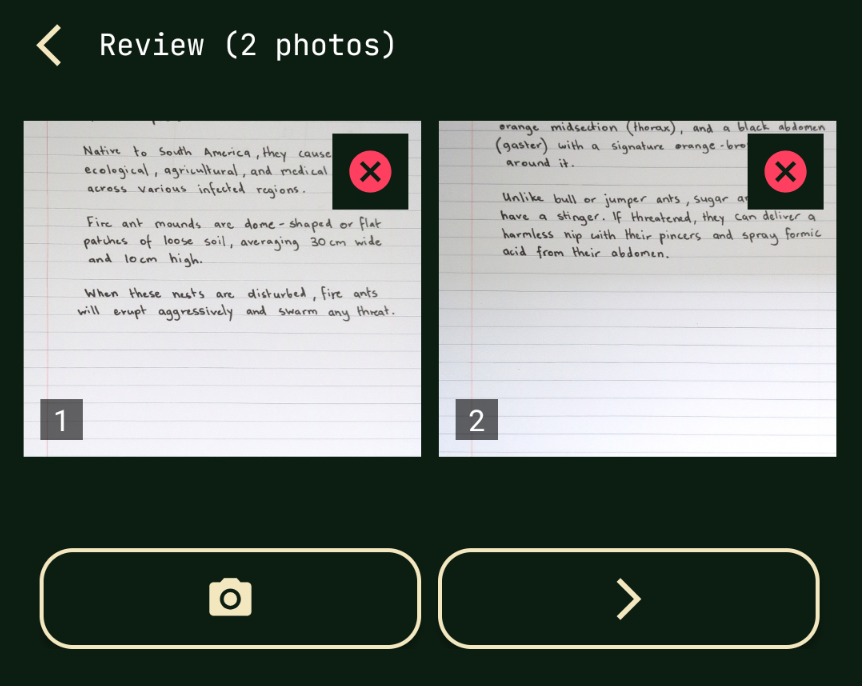
- Click the red (X) button to confirm the deletion of a given scan from this batch.
- Click the image itself to bring up a full-sized display of the scanned image.
- Click the Camera button on the bottom left to return to the capture screen and scan / add more images.
- Click the forward / right arrow button to confirm the batch as well as any workflow(s) you want to run against it.
Confirm the batch of images
The final confirmation screen will present you with a list of workflows you have configured that you may want to run against the batch of scans.
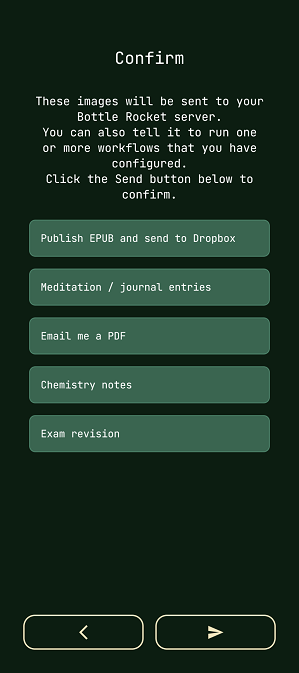
- You can tap each workflow on / off to select it.
- Click the back / left arrow button on the bottom left to return to the previous screen.
- Click the Send button on the bottom right to send the batch to your Bottle Rocket server.