Adding QR code authentication
For convenience, you can use QR-based authentication to set up your mobile app user accounts.
Prerequisites
To enable this, you simply need to ensure that the PUBLIC_BASE_URL environment variable is set as detailed
here.
The URL should be of a format such that your mobile app, when connected to the same network as the running server, can access it, be it by IP address or locally-defined host name.
localhost would not work, for example, as the mobile app would not know what server it refers to.
Additionally, you may need to set the port number, depending on how the server has been configured.
- As an example, let's assume that the server is running on a LAN with IP address
192.168.1.123and running on port3001.- The
PUBLIC_BASE_URLvalue is set tohttp://192.168.1.123:3001.
- The
Getting a QR code for a user account
Bottle Rocket will only provide a QR code for the user account when a new password has been set.
To generate a new QR code, you will need to re-supply or provide a new password for that user account.
- Login to your Bottle Rocket server (you will need to be an administrator).
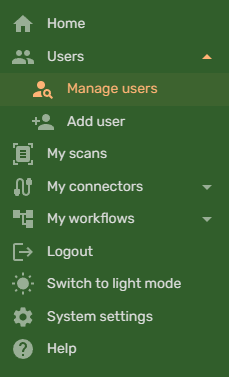
- To edit a user account, on the left-hand sidebar, under Users, select either:
- Manage users, and select a user account to edit, or
- Add user to add a new user account.
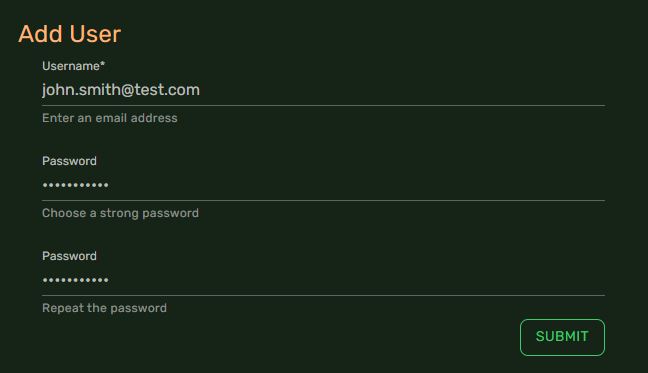
- Set the user's password (repeat as required)
- Click Submit.
- If you have correctly configured the
PUBLIC_BASE_URLenvironment variable, you should be presented with a pop-up dialog with the QR code on it.
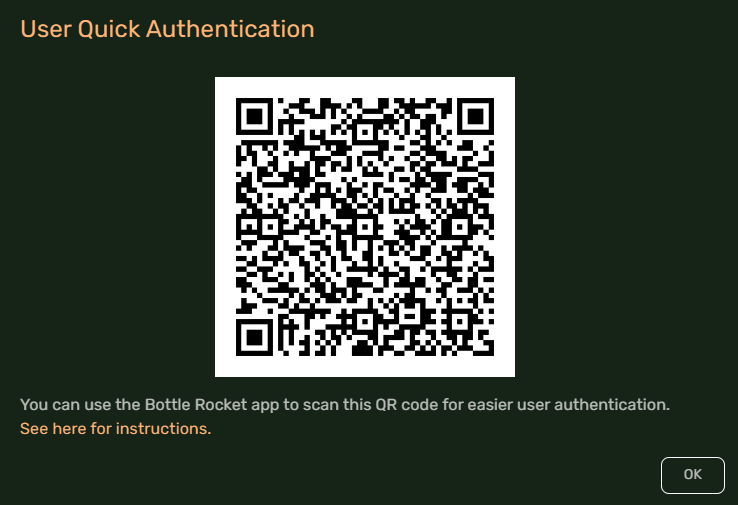
- Keep this page open, and continue to the client app installation to scan the QR code.